Adding your payment card in the app
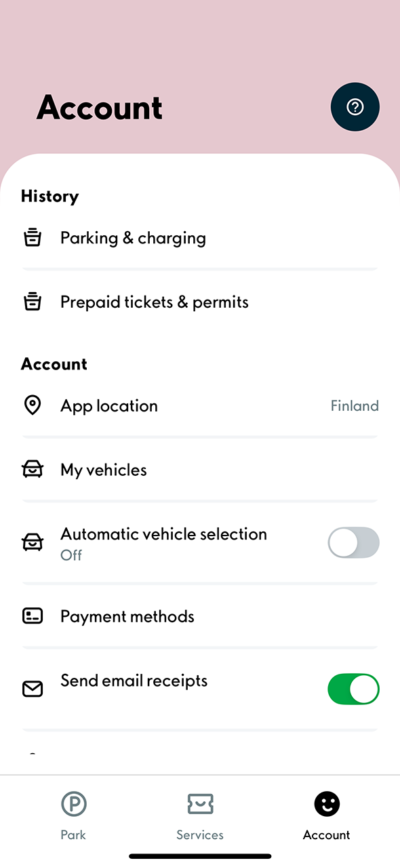
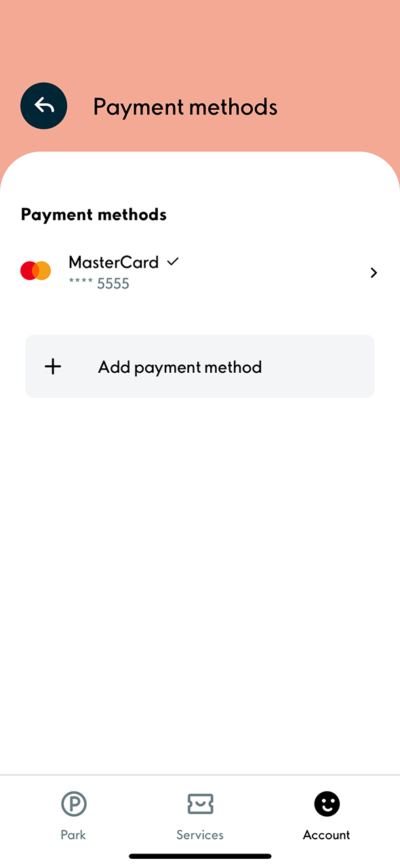
1. To add a payment card, choose the "Account" tab in the bottom right corner. Next, choose Payment methods.
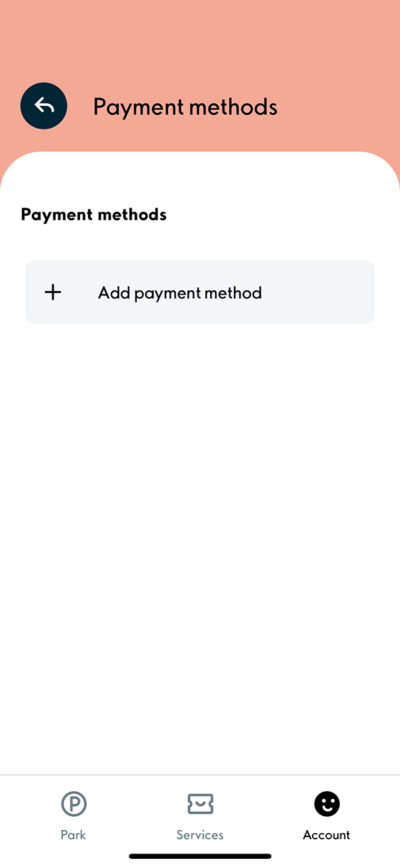
2. Choose "Add payment method".
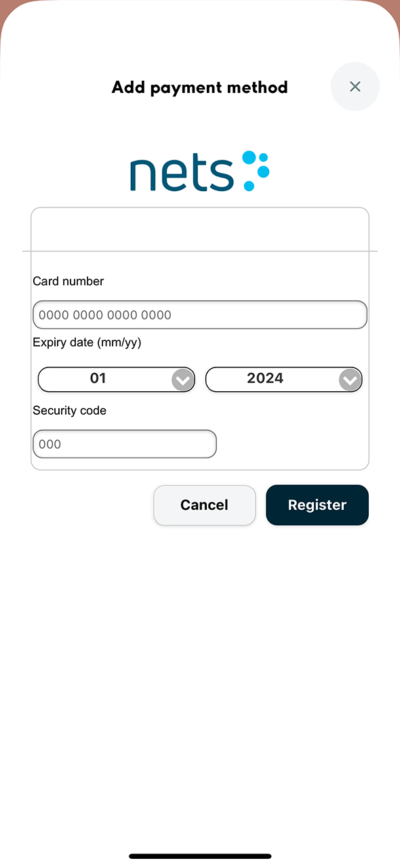
3. Fill the payment card's information in the required slots and select "Register".
The application directs you to perform a strong identification in your online bank. Your payment card must have online payments enabled, so that the card can be added.
Please note! In the app, you can pay with Visa and Mastercard payment cards. Please note that American Express (Amex) and Diners Club payment cards are currently not supported payment methods.
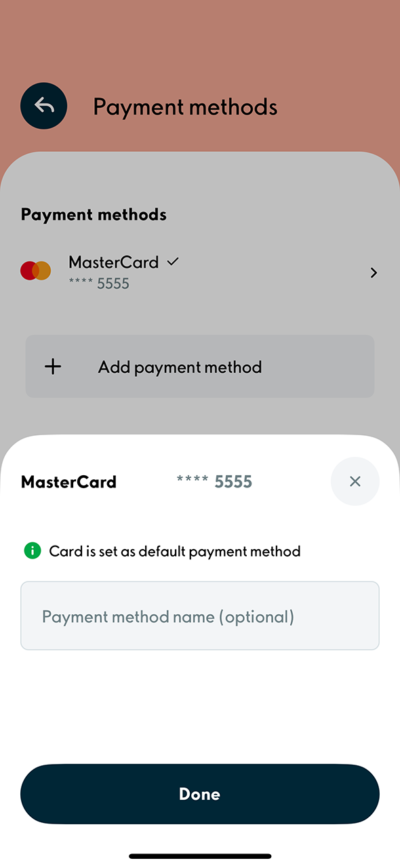
4. You can add a name for your payment card if you wish. Next, choose "Done"
5. Your payment card will now be visible in the "Payment methods" section.
PLEASE NOTE! Should you have an active parking permit, remember to add the new payment card as the permit's payment method. Your active permits are shown in the "Services" tab. Should you wish to edit your permit, choose the permit beneath the "My permits" header.
Please note as well that the camera recognition cannot be activated without a valid payment card on your account. Reactivate the camera recognition when adding a new payment card to your account.
Further instructions can be found below: Aimo app camera recognition : Aimo App
Removing your payment card
The payment card can be removed in the "Account" tab by selecting the desired card and clicking "Remove payment method". After this, the app will inform you that the camera recognized parking will not be allowed without a valid payment method. To conclude removing the payment card, click the "Remove" button.
Please note that removing the payment card will also delete it from your possible parking permits and thus the permits' automatic renewal will be unsuccessful.
Please note as well that the camera recognition cannot be activated without a valid payment card on your account. Reactivate the camera recognition when adding a new payment card to your account.
Further instructions can be found below: Aimo app camera recognition : Aimo App

Was this article helpful?
That’s Great!
Thank you for your feedback
Sorry! We couldn't be helpful
Thank you for your feedback
Feedback sent
We appreciate your effort and will try to fix the article