Adding a vehicle
1. In order to use AImo app in certain park targets, you must first add your vehicle to the app. To do so, select the "Account" tab in the bottom right corner. Next select "My vehicles".
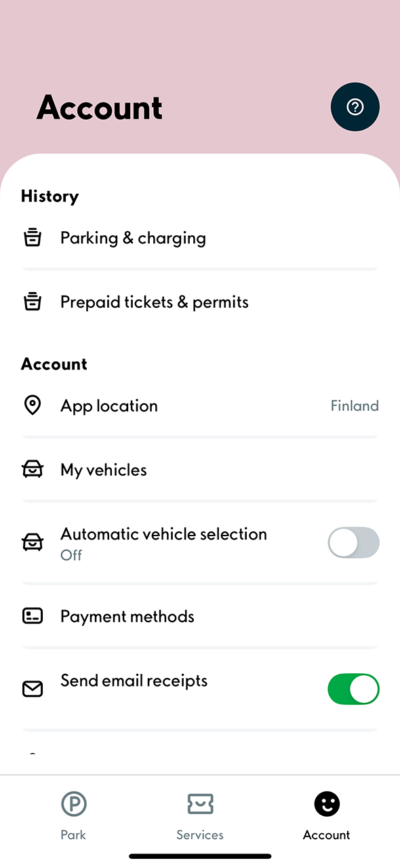
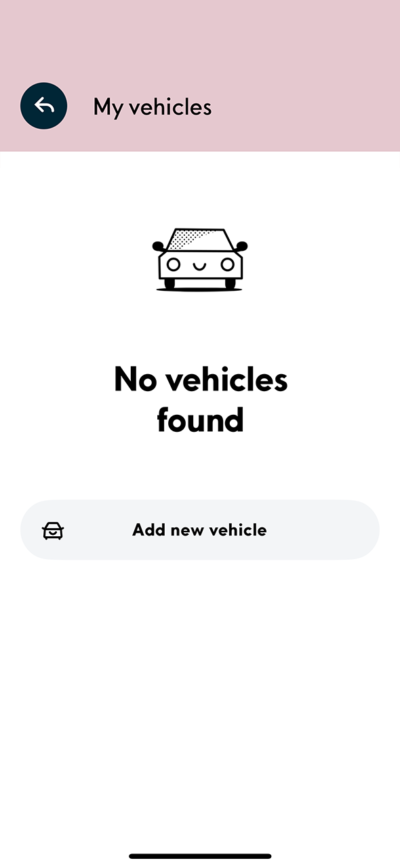
2. Select "Add new vehicle".
3. Input your vehicle's license plate number to the required section. You can also add for your a car a nickname, color and icon for your vehicle in the "Details" tab. Make sure to select if you want to activate the camera parking for your vehicle. After making all the necessary selections, choose "Add vehicle".
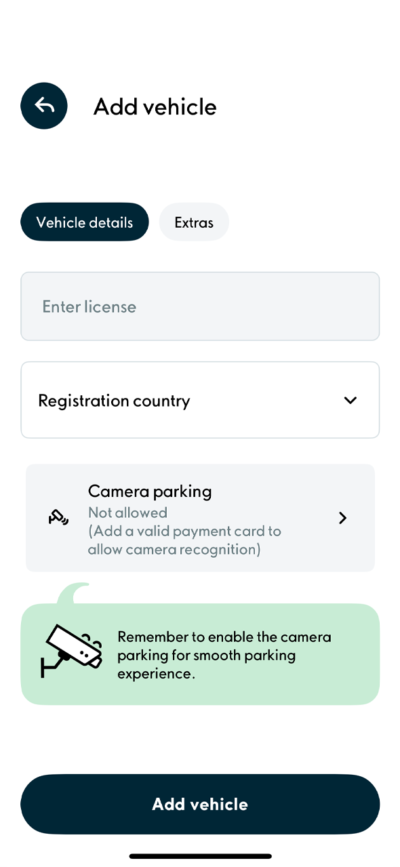
If you have activated the camera parking, all you have to do is arrive and leave the park target; your vehicle will be automatically recognized automatically in park targets that use camera recognition and the payment will be charged automatically from your payment card.
Further details for camera recognition can be found here:
Aimo app camera recognition : Aimo App
4. You will find your vehicle in the "Account" tab's "My vehicles" section.
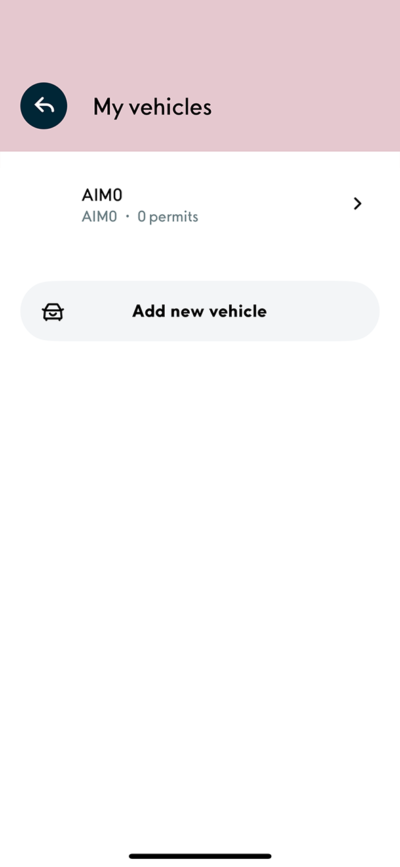
Please make sure to add the vehicle's license plate number separately for your parking permit. Further instructions for managing a parking permit can be found here: Managing and terminating a monthly permit with Aimo app : Aimo App
Removing a vehicle
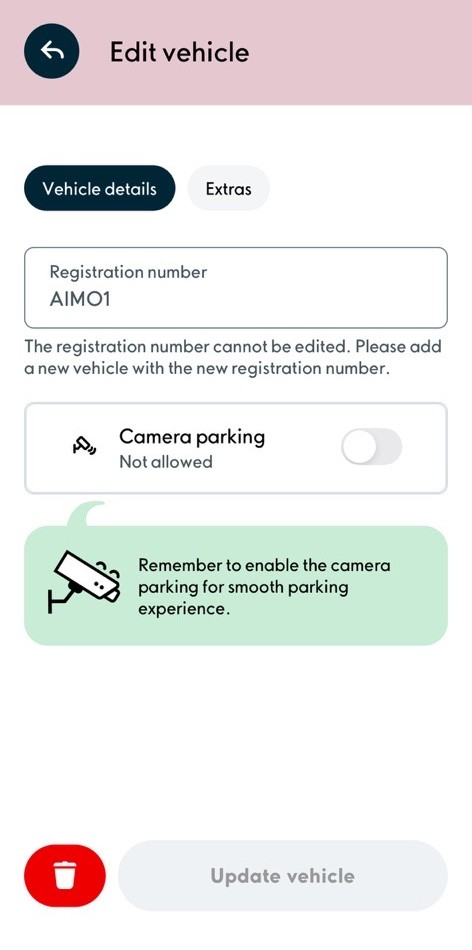
1. You will find your vehicle in the "Account" window by selecting the "Vehicles and payment" section beneath the "My vehicles" header. Choose the vehicle you wish to remove and click the trash can icon.
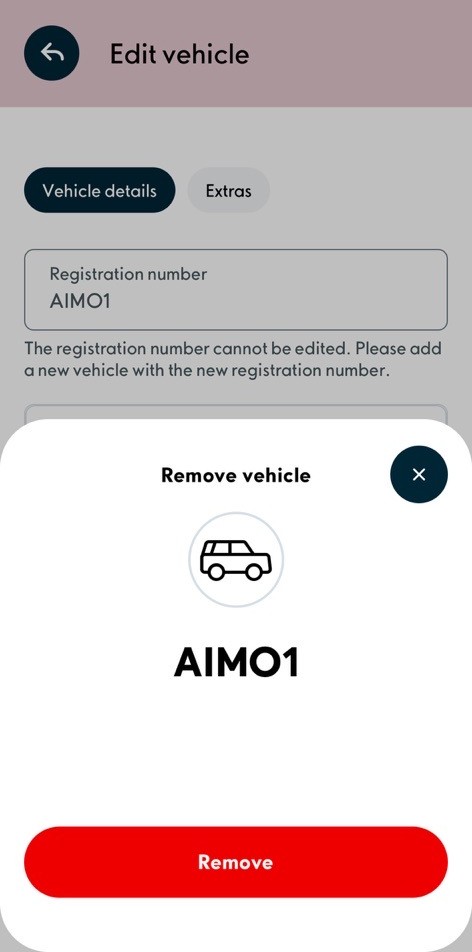
2. Confirm the removal by clicking the Remove-button.
Was this article helpful?
That’s Great!
Thank you for your feedback
Sorry! We couldn't be helpful
Thank you for your feedback
Feedback sent
We appreciate your effort and will try to fix the article